
Control timing on the audio timeline.
The timeline shows how vocal, music, and SFX clips meet in time. Move a clip to change its start, resize an edge to change its active duration, and use Ctrl when you need ripple-style vocal adjustments.
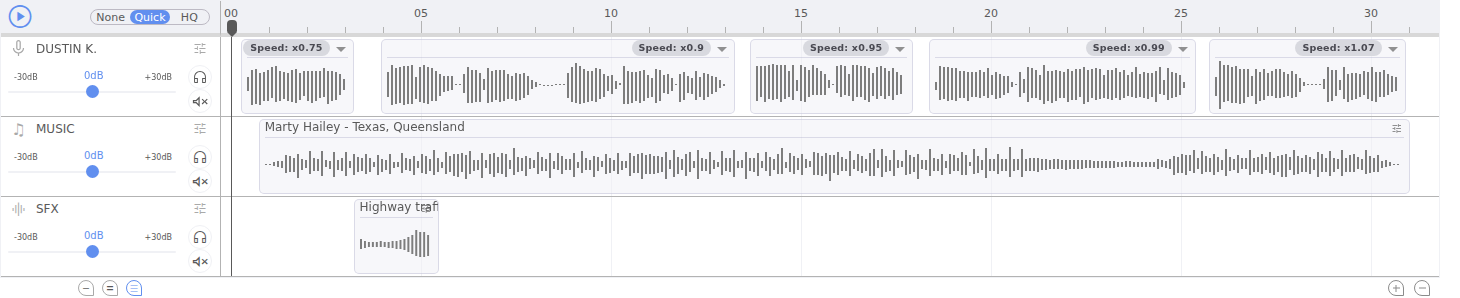
Read the timeline
- Playhead — the current playback position.
- Vocal lane — generated or pre-recorded spoken clips linked to the script.
- Music lane — soundtrack clips with their own start and duration.
- SFX lane — sound events that can be placed and layered.
- Waveform — a visual guide to activity and transients, not a loudness measurement.
- Zoom — changes the visible time scale without changing audio.
Move versus resize
Drag the body of a clip to move it. Drag an edge to resize it. Valid positions are constrained so a clip cannot use media outside its source or violate its lane's timing rules.
Vocal clips
| Action | Without Ctrl | With Ctrl held |
|---|---|---|
| Move | Moves the selected vocal start; later vocals keep their positions. | Moves the selected vocal and shifts downstream vocals with it. |
| Resize | Changes duration and speech speed; the following vocal follows the normal anchoring rule. | Changes duration/speed and performs a ripple adjustment across downstream vocals. |
Because a generated vocal's words remain fixed, changing its duration changes the effective speech speed. Listen for unnatural pacing after every vocal resize.
Music clips
| Action | Without Ctrl | With Ctrl held |
|---|---|---|
| Move | Changes the start; for a variable-duration edit the end can remain anchored, changing visible duration. | Moves the clip while preserving its duration. |
| Resize | Changes the active duration within source limits. | Uses the same duration edit; Ctrl does not add vocal-style ripple behavior. |
SFX clips
Move changes the start and resize changes the active duration. Holding Ctrl does not create a downstream ripple for SFX. If an edge no longer moves, the source has reached its available limit.
Use Ctrl deliberately
Press and hold Ctrl before starting the drag. The modifier matters most on Vocal, where it lets you preserve downstream spacing while moving or retiming a section. Release the pointer before releasing the key.
Keep script and audio synchronized
- Edit words in the script editor.
- Regenerate the vocal if it becomes stale.
- Return to the timeline and inspect the new duration.
- Move or resize downstream clips only after the new performance is available.
- Play across both edges of every changed clip.
A safe timing pass
- SpeechApprove words and generated performances.
- StructureSet vocal starts and transitions.
- MusicChoose entry, body, lift, and ending.
- SFXAlign events to words or beats.
- MixBalance clips and lanes.
- ReviewPlay the entire creative without stopping.
Before switching tabs
- No clip begins or ends by accident.
- Vocal speed still sounds natural.
- Music and ambience do not stop abruptly.
- SFX transients align with the intended word or moment.
- Zoom and playhead changes have not been mistaken for audio edits.